
How to Block a Customer from Ordering on Shopify
Learn exactly how to stop repeat fraudsters from placing orders on your Shopify store. This guide compares Shopify's native tools, manual methods, and checkout blocking apps so you can choose the right approach.

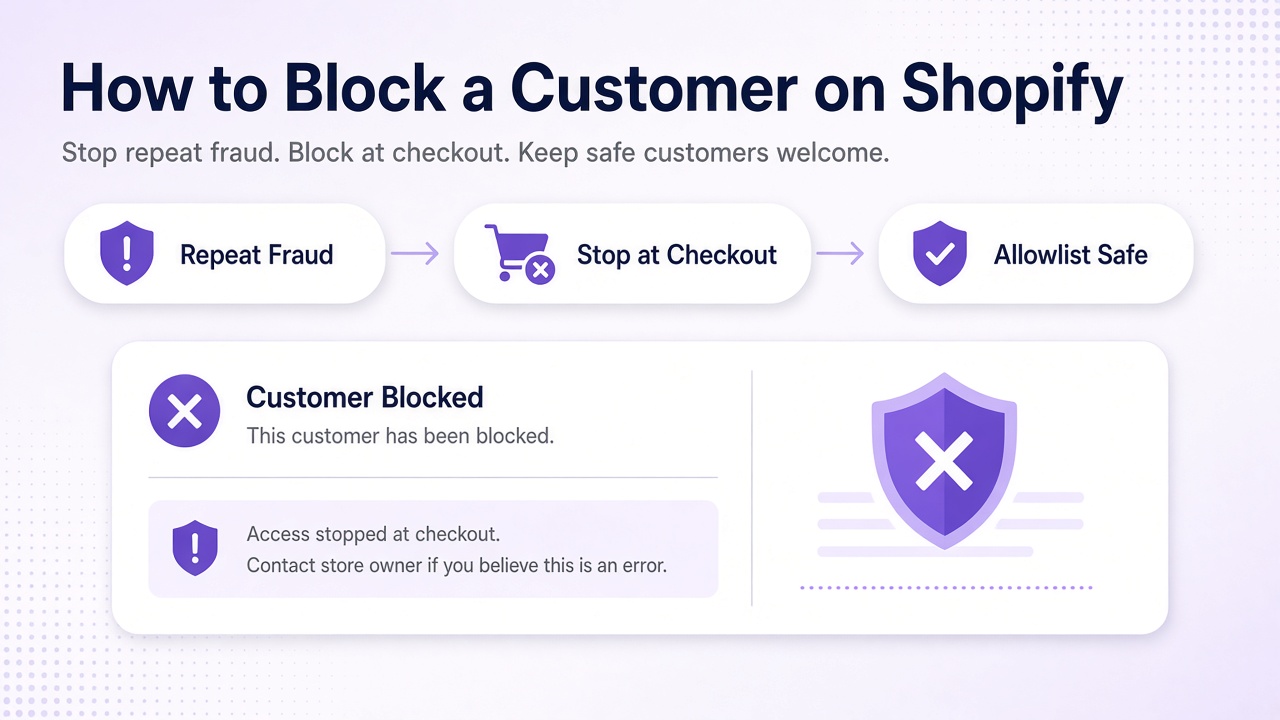
Fraudsters often return to the same store using new email addresses, guest checkout, or slight changes to their name or shipping address. Each new order wastes time on review, packing, and chargeback disputes.
This guide shows what Shopify offers natively, why common manual fixes fall short, and how to block buyers at checkout before they pay. You will learn exact steps for every method, trade-offs, and which option fits your situation.
Norivon's AI Fraud Block & Chargeback is mentioned below only where it directly solves a limitation of native tools.
Quick answer: Shopify does not let you block a customer before checkout. You can cancel orders after they are placed or add fraud risk tags. For true prevention, use a checkout blocklist app that stops known fraudsters by email, phone, name, address or customer ID even when they use guest checkout.
What do you actually need?
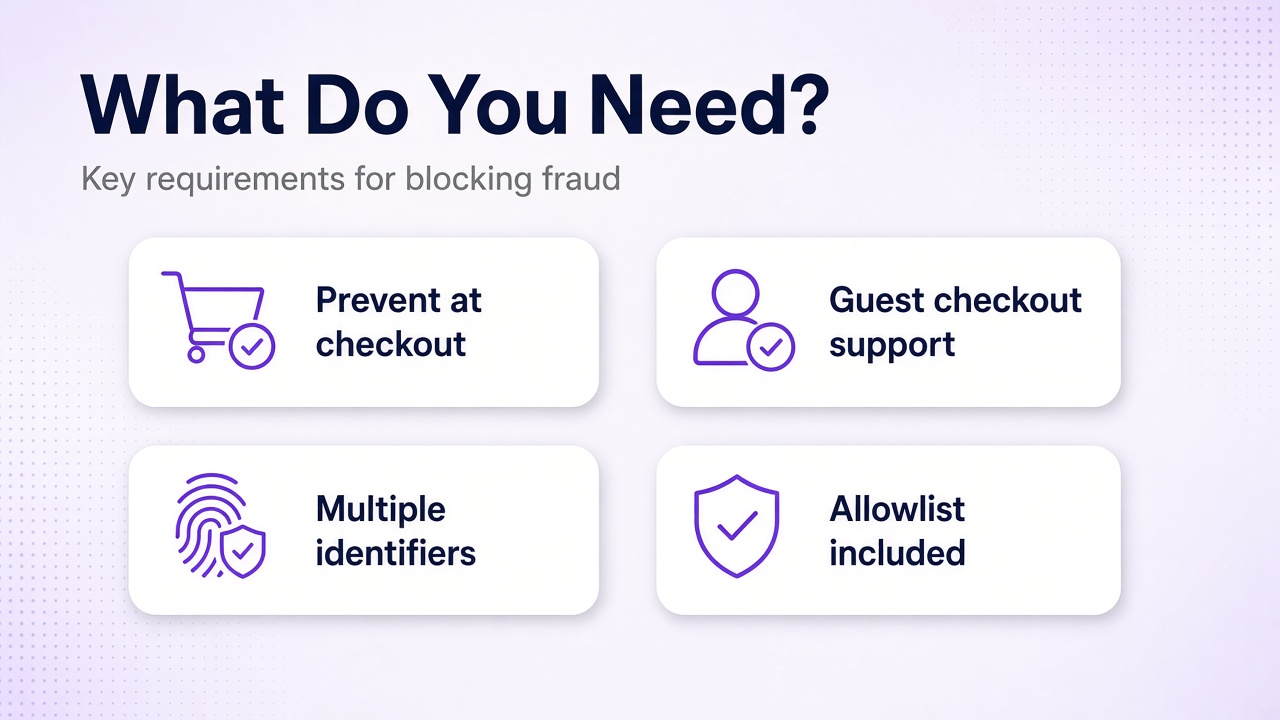
Before choosing a method, clarify your goal. Most store owners want to stop the same person from completing another order without blocking legitimate customers.
- Prevent the buyer from reaching the payment step
- Work with guest checkout (no account required)
- Block using multiple identifiers (email, phone, name variations, address)
- Allow specific trusted customers to bypass blocks
- Require no custom code or theme edits
- Show a clear message to the blocked buyer
- Keep the solution up to date when Shopify changes checkout
Comparison of your options
Three main approaches exist: Shopify native tools, manual workarounds, and dedicated checkout blocklist apps. Each has different strengths and limitations.
| Method | Blocks before payment | Works with guest checkout | Requires code | False-positive risk | Monthly cost |
|---|---|---|---|---|---|
| Shopify native tools | No | Partial | No | Medium | Included in plan |
| Manual workarounds | No | No | Yes | High | Free or developer cost |
| Checkout blocklist app | Yes | Yes | No | Low with allowlist | Free to $49 |
Which should you choose?
- You get occasional fraud and want zero extra cost. Start with Shopify's built-in fraud analysis and order cancellation. Add manual notes or tags for repeat offenders.
- You have a small volume of orders and can review every one. Use customer tags and staff notes. This works only for customers who create accounts.
- You sell high-value items or face daily fraud attempts. Choose a checkout blocklist app. It stops the order before payment and handles guest checkout.
- You need to block by address or name patterns without blocking an entire city. A dedicated app with precise matching and an allowlist is the safest choice.
- You already use custom checkout code or third-party checkout. Test whether your current setup supports additional validation. Most store owners move to a maintained app instead of maintaining code.
How Shopify handles fraud natively
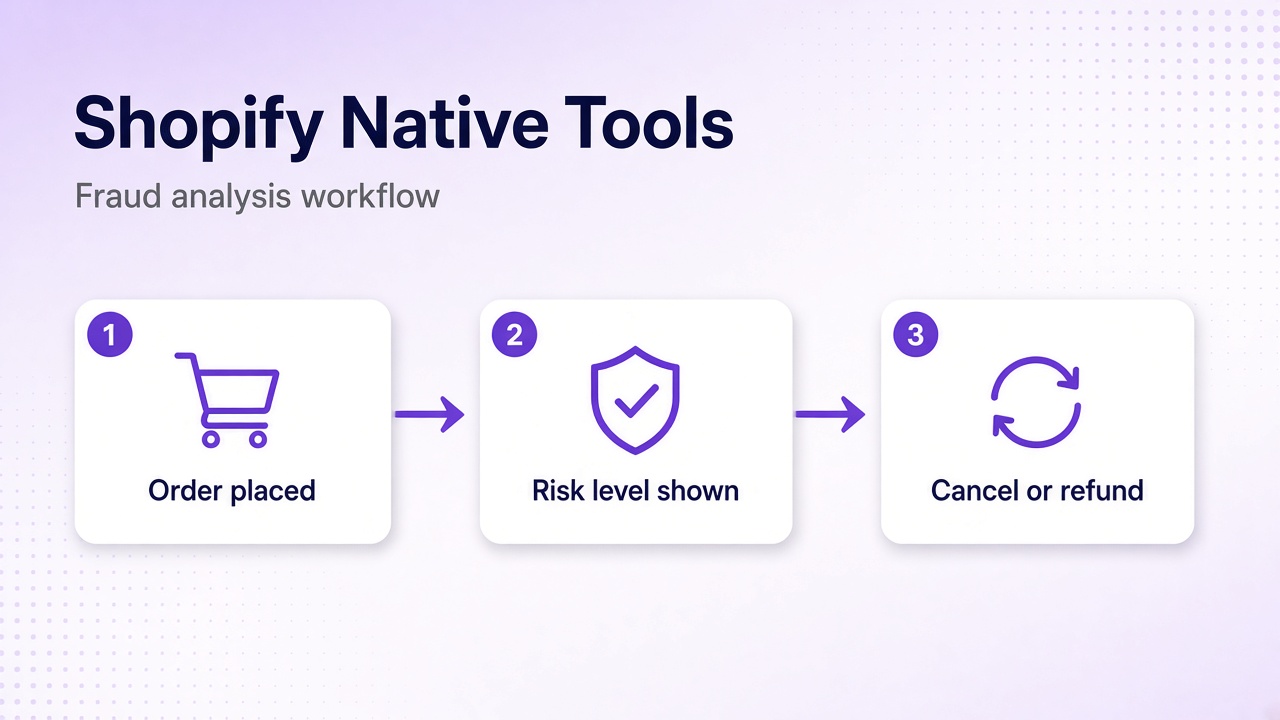
Shopify includes order risk analysis on every store. It assigns Low, Medium or High risk to each order based on factors such as billing and shipping address match, customer history, and known fraud patterns. You can then cancel or refund fraudulent orders after they are placed.
How to set it up
- Go to
Ordersin your Shopify admin. - Click any order to open its details.
- Look for the Fraud analysis section on the right. It shows the risk level and recommended actions.
- To act on high-risk orders automatically, go to
Settings → Checkout. - Under Fraud protection, choose your preferred level (Recommended is usually sufficient).
- For manual review, create an order filter: go to
Orders, click Filter, select Risk level is high, then save the filter for daily checks. - To cancel an order, open it, click More actions → Cancel order, choose a reason, and decide whether to refund.
Limits and what to watch for
- Analysis happens after the customer reaches the thank-you page, not at checkout.
- Guest checkout customers have no persistent profile, so the same person can return with a new email.
- Cancelling orders still incurs payment processing fees in many cases.
- Chargebacks can still occur even after cancellation if the customer disputes the authorization.
- You must review orders manually unless you build automation with Shopify Flow (available on higher plans).
Use this when you have low order volume and prefer to stay within Shopify's own features.
Manual workarounds and why they usually fail
Many store owners try deleting customers, adding tags, or editing theme code to block known fraudsters. These methods require ongoing maintenance and often stop working after Shopify updates.
How to set it up
- For customer tagging: go to
Customers, find the customer, click Add tag, and enter something likefraud-block. - Create a customer segment: go to
Customers → Segments, click Create segment, then add the conditiontag is fraud-block. - To show a message, you must edit your theme code. Go to
Online Store → Themes → Actions → Edit code. - Locate the cart or checkout section files (exact file depends on your theme) and add conditional Liquid code that checks for the tag. This step varies by theme and is not supported by Shopify.
- For address blocking, some owners add JavaScript to the theme that checks shipping fields. This breaks when Shopify updates checkout or when customers use Apple Pay or express checkout.
Limits and what to watch for
- Tags and segments only apply to customers with accounts, not guest checkout.
- Theme code changes can break during theme updates or Shopify platform changes.
- Broad address blocks (for example an entire postcode) often block legitimate customers.
- No easy way to manage a growing list of blocked names or partial address matches.
- Maintenance takes time that most store owners would rather spend on product or marketing.
Use this when you have technical experience, very few repeat fraudsters, and accept that the block may stop working after a Shopify update.
Blocking at checkout with a dedicated app
A checkout blocklist app lets you add known fraudsters by email, phone, name, address, or customer ID. The app prevents them from completing checkout and shows a custom message. It works for both account holders and guest checkout.
Norivon's AI Fraud Block & Chargeback follows this approach. It includes an allowlist so trusted buyers are never blocked and gives you full control over the message shown to blocked shoppers.
How to set it up
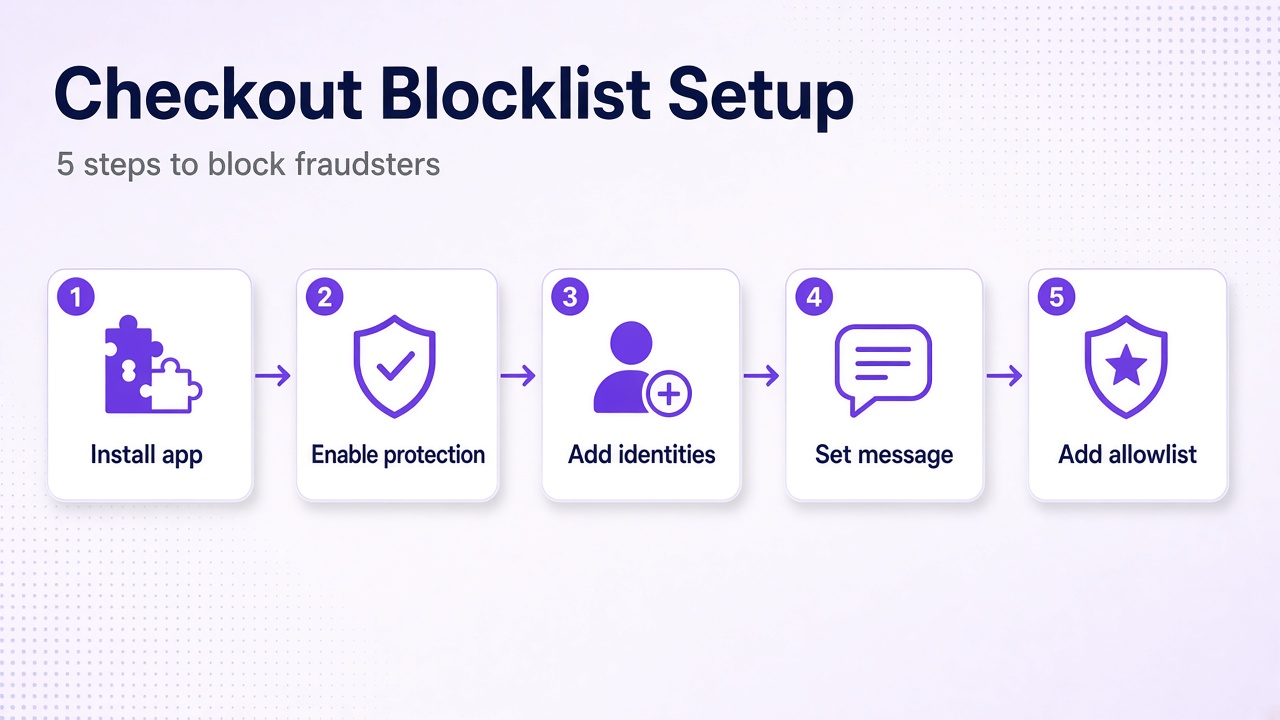
- Visit the Shopify App Store and install AI Fraud Block & Chargeback.
- After installation, go to the app's main dashboard.
- In Settings, turn on Checkout protection.
- Click Add blocked identity.
- Choose the type (email, phone, name, address, or customer ID) and enter the value. For addresses, you can enter partial matches such as street name or postcode.
- Write the message you want blocked shoppers to see. Use the built-in preview to check how it appears on mobile and desktop.
- Add any trusted customers or VIPs to the Allowlist section so they are never blocked even if they match a blocked pattern.
- To test, use your own test email or phone number. Add it to the blocklist, then start a checkout on your store. Confirm the custom message appears and checkout is stopped before payment.
- Repeat for any additional fraudsters you want to block. The list is saved in the app and updated instantly.
Limits and what to watch for
- Free plan allows a limited number of blocked identities. Pro plan ($19 per month) and Premium plan ($49 per month) offer higher limits and additional features.
- Very common names or addresses may require careful allowlist management.
- The app cannot block someone who has never interacted with your store before.
- You must keep the blocklist updated when fraudsters change tactics.
- Always test after adding new entries to avoid accidental blocks.
Use this when you face repeat fraud from the same individuals and want to stop orders before payment without writing code.
Common mistakes
- Blocking an entire city or common street name without an allowlist, which stops good customers.
- Forgetting to add business partners, test accounts, or high-value repeat buyers to the allowlist.
- Not testing the block with your own details before going live.
- Assuming the block works on every checkout method (some express checkouts may require separate configuration).
- Adding only an email address when the fraudster uses guest checkout with varying emails.
- Neglecting to cancel or archive old test orders that appear in your order list.
- Using theme code that conflicts with future Shopify updates or new checkout features.
Troubleshooting table
| Issue | Possible cause | Fix |
|---|---|---|
| Blocked customer can still checkout | Used a new email or different address variation | Add all known variations to the blocklist; use partial address match |
| Good customer is blocked | Matches a broad rule or was added by mistake | Move them to the allowlist immediately |
| Message does not appear | Checkout protection not enabled or app not installed correctly | Check app settings and reinstall if needed |
| High-risk orders still come through | Blocklist only prevents known identities | Combine with Shopify's fraud analysis for unknown fraud |
Frequently asked questions
Can a blocked customer still place an order with a new email?
If you only blocked the old email, yes. Add phone, name, and address patterns to the blocklist to reduce this risk. No solution can block every possible new identity a determined fraudster might create.
Does it work with guest checkout?
Yes. Dedicated checkout blocklist apps check the information entered at checkout even when the customer has not created an account.
Will it block good customers?
It can if you add overly broad rules. An allowlist prevents this. Always test new blocks with known good accounts.
Does the app cancel orders automatically?
No. The app prevents the checkout from completing. It never cancels or refunds orders without your explicit approval.
Is the blocklist shared across stores?
No. Each merchant manages their own private blocklist. Shopify does not share customer block data between stores.
What happens if I switch themes or checkout customizations?
A well-maintained app continues to work because it operates at the checkout validation layer rather than inside theme files.
Conclusion
- Low fraud volume and small stores: use Shopify's native fraud analysis and manual cancellation.
- Occasional repeat offenders who create accounts: combine customer tags with staff notes.
- Daily fraud or high-value orders: install a checkout blocklist app and maintain an allowlist.
- Always test every new block and keep both a blocklist and an allowlist updated.
- Combine methods when needed: native risk analysis for unknown fraud and a blocklist for known repeat offenders.
Related apps
Tools from this article
 Coming soon
AI Fraud Block & Chargeback
Block bad buyers at checkout and turn chargebacks into protection.
Stop repeat fraudsters before they order. Block known bad buyers at checkout, flag risky orders for review, and automatically add chargeback customers to your blocklist.